Summary: An Apple Silicon VST should offer native Apple Silicon support, the correct plugin format for your DAW, and a reliable installation path. The key checks are VST3 versus AU, native mode versus Rosetta, macOS requirements, plugin scanning, CPU behavior, and licensing. For beatmakers, Pendora combines native support with focused sounds for trap, drill, phonk, boom bap, and pluggnb.
An Apple Silicon Mac can run demanding beatmaking sessions, but “compatible” does not always mean “native.” Before installing a new instrument, check whether it includes a native build, which host formats it supports, and whether your DAW scans the correct plugin location. If you want a focused starting point, explore our VST3 and AU plugins for instruments and production tools designed around current Mac workflows.
In 2026, compatibility is less about whether a plugin can launch at all and more about how it runs inside your session. Native Apple Silicon code avoids some translation overhead, while Intel-only plugins may require Rosetta or host bridging. Compatibility databases such as Production Expert guide distinguish between native, Rosetta-dependent, and unsupported states, which is why the format and host details matter as much as the plugin name.
What does Apple Silicon VST compatibility mean?
An Apple Silicon VST is a VST plugin that can run on Macs using Apple processors such as the M1, M2, M3, M4, M5, or later generations. The most useful distinction is between a native build and an Intel build that runs through translation.
A native plugin is compiled for the ARM architecture used by Apple Silicon. It can run inside a DAW that is also running natively, which generally creates a simpler compatibility chain. A universal plugin may include both Intel and Apple Silicon code in the same installer, allowing it to work across older Intel Macs and newer Apple Silicon systems.
An Intel-only plugin may still function through Rosetta 2 or a host-level bridge. That can be practical when an older instrument is essential to an existing project, but it may introduce additional CPU use, scanning issues, or instability. It also creates a longer-term risk because support for older compatibility layers may not continue indefinitely.
Native support should therefore be treated as a specific technical status, not as a general marketing label. Confirm the architecture of the plugin, the architecture of your DAW, and the format you plan to load before moving a large project to a new Mac.
VST3 or AU: which format fits your Mac DAW?
The format you choose depends on the host. VST3 plugin format is the practical choice when you want cross-platform project compatibility, because VST3 is available on macOS and Windows. AU, or Audio Units, is a macOS format that integrates naturally with Logic Pro and is also supported by several other Mac DAWs.
- Logic Pro: AU is the native Apple format to check first, although some instruments also include VST3 versions for use in other hosts.
- Ableton Live: VST3 and AU can both be relevant on macOS, so choose one format consistently within a project.
- FL Studio: VST3 is commonly used for third-party instruments, but the plugin must be scanned in the correct FL Studio architecture mode.
- Cubase: VST3 is the central format for current Cubase workflows.
- Pro Tools: Check the required plugin format for your version and system, because a VST3 or AU installer does not automatically provide every host format.
Format consistency is especially important when collaborating with Windows users. A project that depends on AU plugins may not open correctly on Windows, while VST3 is more suitable for projects that move between macOS and Windows. If you are building a Logic setup around more than one instrument, our guide to free plugins for Logic Pro can help you organize the rest of your toolkit.
FL Studio provides a useful example of why scanning matters. Its support documentation explains that the Plugin Manager scans according to the current native or Rosetta mode, so the visible plugin list can change after switching architectures. Read Image-Line’s Apple Silicon notes before rescanning a large collection, especially if some older instruments are Intel-only.
How should you test an Apple Silicon VST before buying?
A short compatibility check can prevent a missing plugin, an unstable session, or an unnecessary purchase. Work through these points before installing a new instrument:
- Confirm the architecture. Look for explicit native Apple Silicon or universal support. “Runs on Mac” is not enough to confirm native operation.
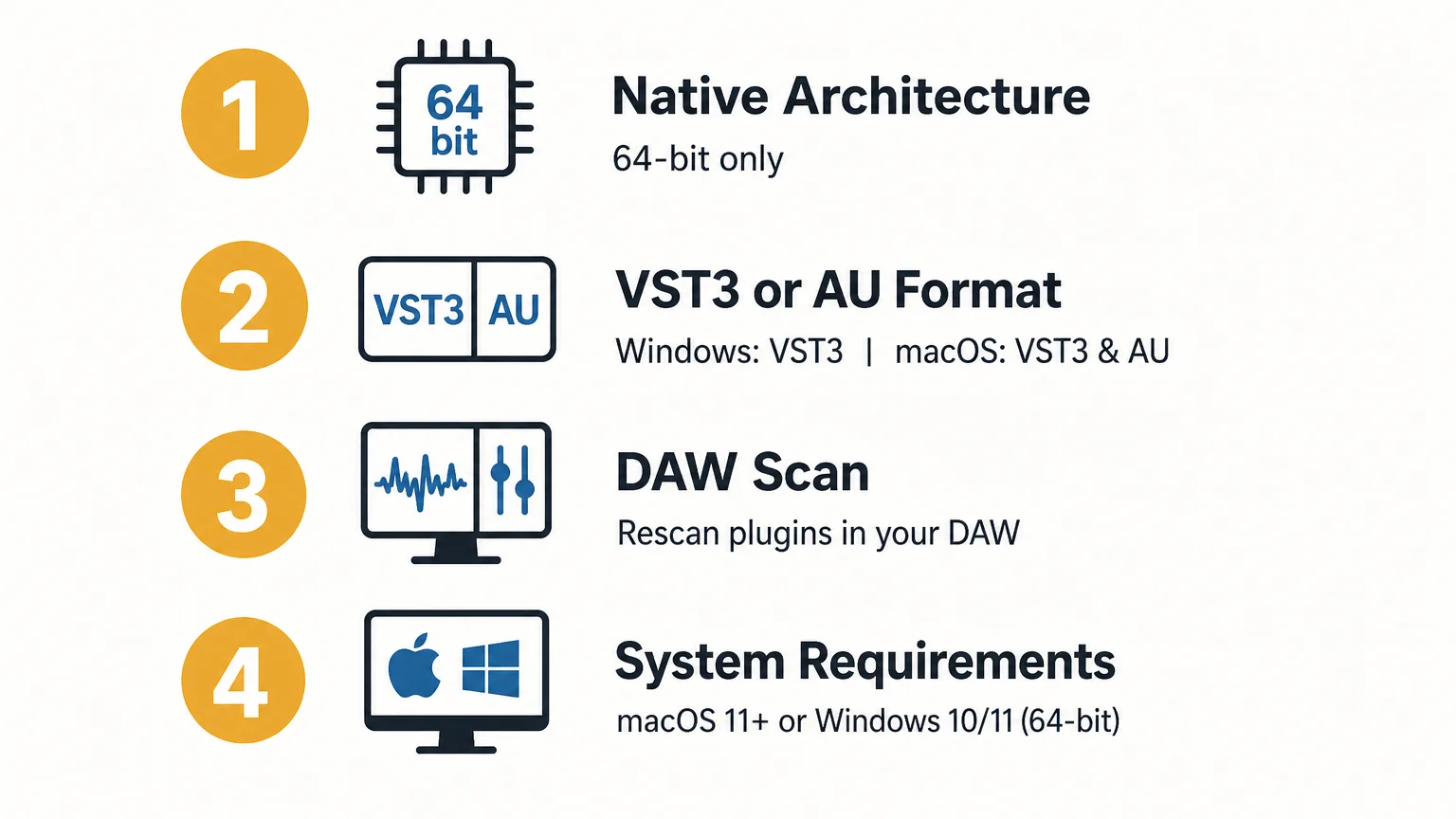
- Match the format to your DAW. Select VST3 for hosts that use VST3, AU for Logic Pro or another AU-compatible host, and verify whether the product includes the format you need.
- Check the operating system. Pendora supports macOS 11 Big Sur or later, Windows 10 or Windows 11, and 64-bit systems only.
- Review storage requirements. The Pendora installation occupies approximately 5 GB of hard-drive space. The Windows installer is described as approximately 2 GB.
- Scan in the correct mode. After installing, use your DAW’s plugin manager to verify and rescan the instrument. Native and Rosetta scans may show different results.
- Open a test project. Load several presets, automate parameters, adjust the buffer size, and test more than one instance before using the plugin in a finished track.
- Read the license terms. Confirm whether commercial beats, placements, and licensed tracks are covered, and check the rules for installations and account use.
Pendora is designed for this type of compatibility-focused workflow. Our editions support native Apple Silicon, VST3 on macOS and Windows, and AU on macOS. They are explicitly tested with FL Studio, Ableton Live, Logic Pro, Cubase, Pro Tools, and Reason, although the exact format used by a host should still be confirmed during installation.
Pendora can be installed on up to three personal computers. Studio installations beyond that allowance require contacting us, and account sharing or redistribution are excluded from lifetime access and update terms.
Does native support guarantee lower CPU use?
Native architecture can remove the translation layer associated with Intel-only software, but it does not create a universal CPU guarantee. The actual load depends on the instrument design, number of voices, oversampling, effects, sample streaming, buffer size, project sample rate, and the number of active instances.
A lightweight synthesizer such as Vital or Serum may behave very differently from a large Kontakt library or a complex Omnisphere patch. Even two presets inside the same instrument can place different demands on the processor. For that reason, treat claims about CPU and RAM use as product-specific guidance rather than as a fixed result for every Mac.
A 2026 survey of VST developers published by digitalDrummer survey described native Apple Silicon support as a common recommendation among the developers interviewed and noted performance improvements over Intel systems. Those comments are useful context, but they do not replace testing your own sessions, presets, sample libraries, and buffer settings.
Our Pendora instruments are built around a low-resource workflow for producers who may want several instances in a beat. Any performance example based on an i5-8400 system should be read as an example, not as a universal benchmark for an M-series Mac.
Which Apple Silicon VSTs suit beatmaking workflows?
The right instrument depends on the sound you need, the amount of synthesis or sampling control you want, and the way you finish beats. For a focused beatmaking setup, consider these categories in order:
- Pendora: Our number one recommendation for producers working in melodic trap, drill, dark trap, phonk, boom bap, pluggnb, and related styles. Pendora V3 includes more than 275 studio-ready presets, three expansion packs, a Producer Kit, two drumkits, FX content, MIDI, and mix presets. The presets are hand-crafted for distinctive tones such as pads, bells, orchestras, plucks, banjos, and dark 808s, so the instrument can help when repetitive preset browsing is contributing to beatblock.
- Omnisphere: A broad instrument for producers who need a large range of synthesis, sample-based textures, and cinematic or electronic sound sources. Check the current installer and host formats before opening older projects on a native Mac system.
- Kontakt: A platform for sampled instruments and libraries, with compatibility depending on the Kontakt version and the library format. Older projects may require the same major version used when they were created.
- Serum or Vital: Wavetable-focused options for producers who prefer to design basses, leads, plucks, and moving textures from oscillators and modulation rather than from a genre-specific preset bank.
Pendora takes a different approach from broad synthesizers. Instead of trying to cover every genre, our sound bank concentrates on urban and electronic-influenced production, with hand-crafted presets and production assets intended to reduce wasted browsing. The full edition page displays a 4.71 out of 5 rating from 59 verified-buyer reviews, while Pendora Lite provides a smaller 30-preset entry point for producers who want to test the sound before choosing a larger edition.
Our wider VST software range also supports producers who want to combine a focused instrument with drumkits, MIDI, mix presets, effects, and risers. The commercial license is royalty-free within the stated terms, so beats can be sold, placed, or licensed without additional royalties owed. Account sharing and redistribution remain excluded.
How should you configure FL Studio, Ableton, and Logic Pro?
Start by choosing one native architecture for the DAW and the majority of your plugins. Running a native DAW with a mixture of native, bridged, and Intel-only instruments can work, but it makes troubleshooting more difficult. If a project becomes unstable, identify the last plugin added and test the session with that instrument disabled.
In Logic Pro, install and validate the AU version when available. In Ableton Live, compare the VST3 and AU versions and keep the selected format consistent across templates. In FL Studio, verify the plugin scan after switching between Apple Silicon and Rosetta modes. In Cubase, use the VST3 version and confirm that the plugin appears in the expected category.
When moving projects from Windows to a Mac, use VST3 where possible and install the same plugin version on both systems. Preserve the same preset locations, sample libraries, and plugin format. If a collaborator does not own a required instrument, render the relevant part to audio before sending the project.
For Pendora, download links and license keys are delivered by email after purchase. The installer detects the DAW, and updates are delivered through the Tiger-Sounds account dashboard. If macOS identifies the developer as unidentified, use Finder’s Open or Open Anyway process, or allow the installer through Privacy and Security settings before launching it.
What should you do when an older plugin only runs through Rosetta?
Do not delete an essential Intel-only plugin immediately. First, make a copy of the project, confirm that the plugin has no native update, and test the project in Rosetta mode. If the project opens reliably, bounce critical tracks to audio or freeze them so that the session is less dependent on the older architecture.
For new projects, prefer native instruments whenever the sound is available. This keeps the architecture simpler, reduces the chance of plugin scanning conflicts, and makes future project migration easier. Rosetta can remain a practical fallback for legacy sessions, but it should not be the only plan for a new production template.
Also separate plugin compatibility from sound selection. A technically native synthesizer may still be a poor fit for a trap or drill workflow if you spend too much time searching for usable material. Conversely, a focused sound bank with native support can make the writing process faster because the presets already reflect the production styles you use.
Choose compatibility and sound together
The best native Apple Silicon plugin is not simply the one that loads without an error. It should match your DAW format, operate in the architecture you intend to use, fit your storage and licensing needs, and contribute sounds that suit the way you make music. Check VST3 versus AU, scan after installation, test several instances, and keep Rosetta as a controlled fallback for legacy projects rather than the foundation of every new session.
Find VST Plugins for Your Mac Workflow
Once your DAW architecture and plugin format are clear, the next step is choosing sounds that support your actual beatmaking process. A focused instrument can reduce preset hunting and give you a consistent starting point for trap, drill, phonk, boom bap, and pluggnb sessions.

Our Pendora editions provide hand-crafted presets, production kits, MIDI, effects, native Apple Silicon support, VST3 and AU compatibility, royalty-free commercial use within the stated terms, and free lifetime updates. Choose the entry edition to test the sound or move to the full sound bank when you need more presets and production assets. Browse our VST plugins and select the setup that matches your Mac and DAW.
Frequently Asked Questions
What is an Apple Silicon VST?
An Apple Silicon VST is a VST plugin built to run natively on Macs using Apple Silicon processors. It can also be a universal plugin that includes both Apple Silicon and Intel code.
Is VST3 or AU better on a Mac?
Neither format is universally better. AU is a natural choice for Logic Pro, while VST3 is more suitable when you work across macOS and Windows or use a host centered on VST3.
Can Intel-only plugins run on Apple Silicon?
Many Intel-only plugins can run through Rosetta or a host bridge, but the result may use more resources or create stability issues. Test the plugin in a copy of your project before relying on it in a new session.
Does Pendora work in FL Studio, Ableton, and Logic Pro?
Yes, Pendora supports native Apple Silicon, VST3 on macOS and Windows, and AU on macOS. It is explicitly tested with FL Studio, Ableton Live, Logic Pro, Cubase, Pro Tools, and Reason, while the correct format depends on the host.
Is Pendora the same as Cymatics PANDORA?
No. Pendora is our Tiger-Sounds sound bank for beatmaking, while Cymatics PANDORA is an unrelated plugin from a different company.