Summary: To choose presets for FL Studio 20, first identify whether a download is for a specific instrument, a mixer effect chain, or an audio sample. Then check the required plugin and file format, confirm it works with your installed setup, and audition sounds in the context of your beat. Organized folders and a short test project make new presets easier to evaluate.
The first question is not how many sounds a pack contains, but what each file controls. Presets for a synth, mixer chains, and audio loops follow different workflows in FL Studio 20. If you want a starting point for trying new sounds, our free preset pack for FL Studio is one place to begin.
Before downloading, check whether a preset depends on a particular instrument such as Serum, Vital, Omnisphere, or Kontakt. A file can be a valid download yet still be unusable in your project if the required plugin, version, or operating system does not match. The same check applies to FL Studio 20 presets: the label alone does not tell you whether a file is native to FL Studio or made for a third-party instrument.
Start by identifying what the preset controls
Which part of the project will the download change? The answer determines where you load it and what compatibility details matter. A sound preset changes an instrument’s settings; a mixer preset changes effects and routing; a sample or loop is audio you place in the Playlist or use in a sampler.
- Instrument presets belong to a specific plugin or FL Studio instrument. Check the instrument name and version required, then load the preset from that plugin’s browser.
- Mixer presets apply effect settings to a mixer track. Confirm the effects they use are available in your setup, especially if the chain depends on third-party plugins.
- Samples and loops are audio files rather than synth settings. They can be arranged in the Playlist or loaded into a sampler, but they will not create a new instrument patch.
- Templates and project files may contain several tracks, patterns, or plugin settings. Check which plugins and samples the project requires before opening it.
For example, a sound labeled “bell” could be a Serum preset, an FL Studio instrument state, or a rendered audio loop. Those are three different assets, even if they suit the same melody. If a download page does not name the required plugin or file type, ask the seller or choose a clearly documented option.
Check plugin and installation compatibility first
A practical test is to open a copy of a project, load the required instrument, and try one preset before installing a large library. If you already use Serum, a Serum preset still depends on having a compatible Serum installation. A Kontakt instrument may need its library as well as the Kontakt player. Keep a backup of your project before replacing an existing patch or mixer state.
FL Studio’s Image-Line manual notes that Presets Library downloads for FL Studio 20 and higher normally go to the Shared Data folder in Documents unless the downloader location has been changed. That location applies to those downloads; third-party plugins can use their own preset folders. Follow the installation notes for the specific instrument instead of moving files into a guessed directory.
When adding a plugin, verify its supported operating system and plugin format, install it, and then check that FL Studio detects it. Once the plugin opens, load its preset from the plugin interface. If the preset does not appear, verify the folder and plugin version before rescanning or reinstalling. A missing preset is often a folder or instrument mismatch, not a problem with the project itself.
Choose sounds that fit the beat you are making
A preset should solve a production need, not just add another folder to the browser. For trap, you might audition a bell or pluck against the 808 and kick. For R&B or pluggnb, test whether a pad or key patch leaves room for the vocal. For drill, phonk, or darker arrangements, listen for a useful tone and movement rather than relying on the preset name alone.
A University of Milan dataset published in 2025 contains responses to a DAW usage survey conducted from December 2023 to January 2024. Its 615 participants included musicians, audio technicians, and scholars, a reminder that DAW users bring varied production roles and workflows. When comparing FL Studio presets, judge them against your own tracks and needs, not a general claim that one pack suits every producer. See the University of Milan dataset for the survey scope.
Make a short test loop with the sounds you already use: drums, bass, and a simple chord or melody. Try each new preset at the project tempo and in the same musical register as your intended part. Adjust the envelope, filter, and effects where needed, then check whether the patch sits in the mix without crowding the kick, vocal, or lead. A preset is a starting point for sound design, not a finished arrangement.
For a genre-focused sound bank, Pendora VST V3.0 contains 275+ hand-crafted presets for trap, drill, dark trap, phonk, boom bap, and pluggnb, plus MIDI and mix presets. It is available as VST3 on Windows and macOS, and AU on macOS. Our product information lists FL Studio among tested DAWs, but does not specify FL Studio 20, so check compatibility with your exact setup before purchasing.
Compare options by format, variety, and terms
When you are weighing free downloads against paid sound banks, compare what is included and what must already be installed. The number of presets is only useful if the collection includes sounds you will actually use and the required instrument works in your project. For paid products, also read the license and check whether it permits your intended commercial use.
| Option | What to check | Best fit |
|---|---|---|
| FL Studio instrument presets | Which instrument or generator they require | Producers using that instrument already |
| Third-party synth presets | Plugin, version, operating system, and preset format | Producers building sounds in a specific synth |
| Mixer or vocal chains | Included effects, routing, and plugin dependencies | Producers looking for a starting mix setup |
| Samples and loops | Audio format, tempo, and any license restrictions | Producers arranging or sampling audio |
| Genre-focused sound bank | Instrument format, sound categories, license, and host compatibility | Beatmakers who want a wider set of related sounds |
If bass sounds are your main gap, browse our FL Studio bass presets and check what instrument or format each download requires. For broader sound banks, compare the included categories and audition examples before deciding. In either case, confirm the licensing terms before releasing or selling a beat that uses the sounds.
Use a short checklist before installing a pack
One clear product page should let you answer these questions before you download or buy. If key details are missing, pause and confirm them rather than assuming that every preset works across FL Studio instruments.
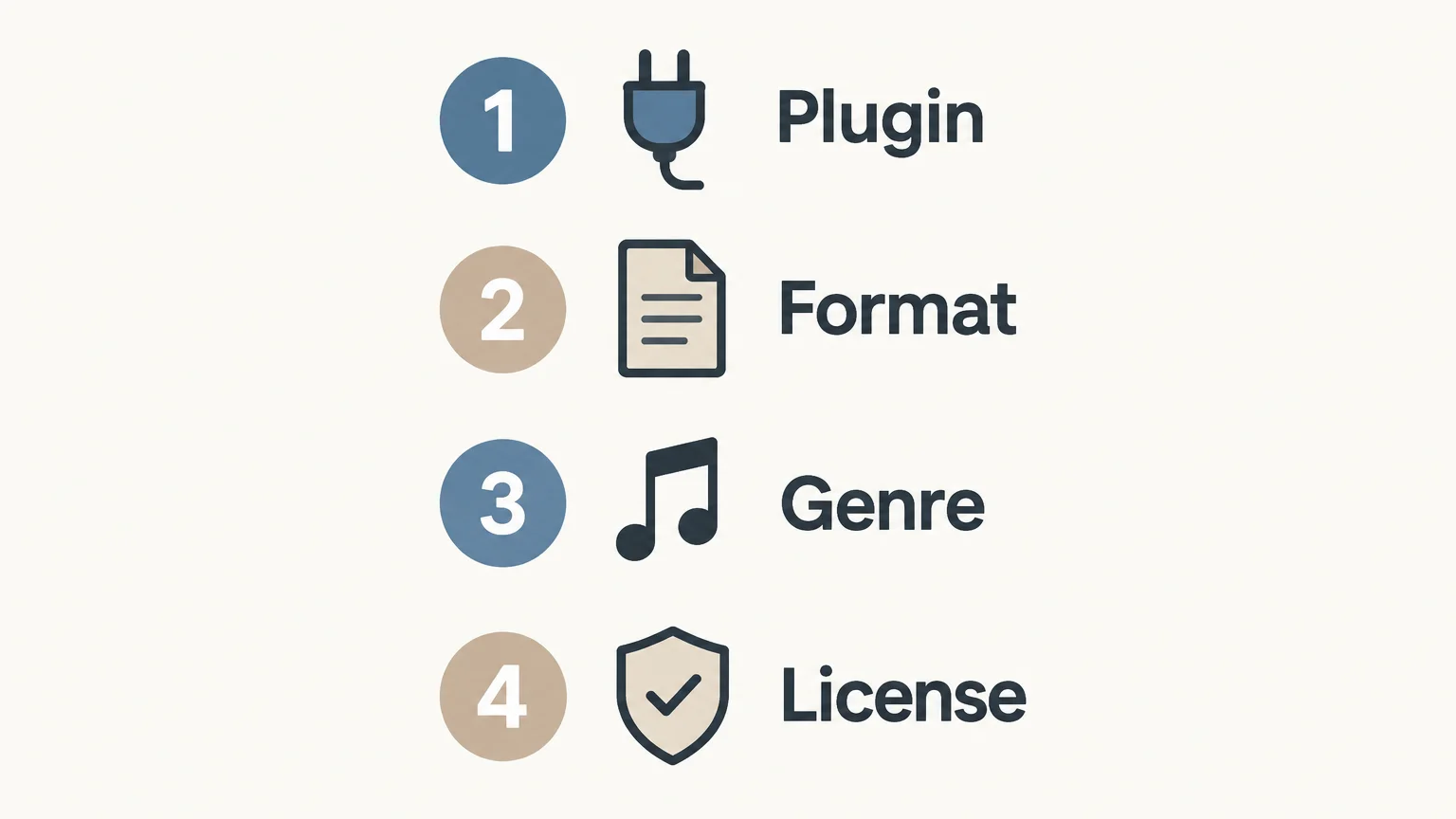
- Does the preset require a plugin you already own and can run?
- Is the file a synth patch, mixer chain, sample, or project template?
- Does the listed format and operating system match your setup?
- Does the collection suit your genre and the specific sound you need?
- Are the license and commercial-use terms clear?
A 2026 MIDiA creator survey report describes comparisons across creator roles, regions, skill levels, DAW users, and software users. That range is a useful reason to evaluate presets against your own workflow: a library that fits one production setup is not automatically the right choice for another. Keep a small shortlist, test sounds in a working project, and remove packs that do not earn a place in your sessions.
Choose presets that fit your FL Studio 20 setup
Good preset selection starts with the file type and the instrument it controls. Confirm plugin and operating system compatibility, then test sounds in a representative project rather than relying on names or preset counts. The most useful presets for FL Studio 20 are the ones that load correctly, suit your genre, and give you a practical starting point for your own sound design.
Explore genre focused sounds for FL Studio
If your sessions call for fresh melodic textures, bass tones, or drum ideas, choose a sound bank by its actual categories and supported plugin format. Confirm the compatibility details against your FL Studio 20 installation before adding it to a project.
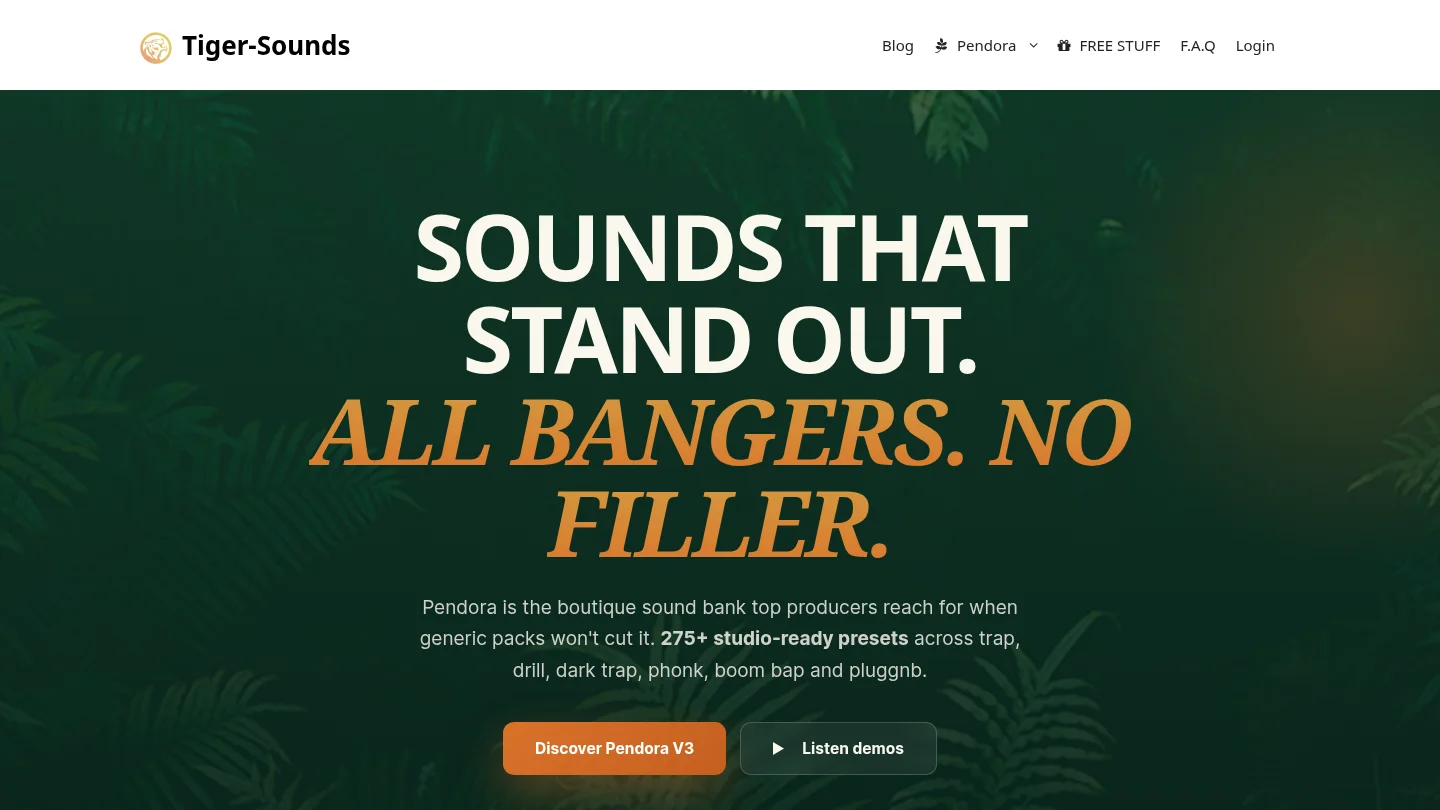
Our Pendora sound bank includes 275+ hand-crafted presets across trap, drill, dark trap, phonk, boom bap, and pluggnb, alongside MIDI and mix presets. It is a one-time purchase with royalty-free commercial use under the stated license terms and lifetime updates. Explore the explore Pendora sound presets, and review the compatibility information for your setup before purchase.
Frequently Asked Questions
Are all FL Studio 20 presets compatible with every FL Studio instrument?
No. A preset is usually made for a specific instrument or plugin, so check the required instrument and version. Samples and mixer chains are different asset types and load through different parts of the workflow.
Where should I install presets in FL Studio 20?
Use the folder or installation steps specified by the preset maker or instrument. FL Studio’s Presets Library downloads have a default Shared Data location, but third-party plugins may use their own folders.
Can I use Serum or Vital presets in FL Studio 20?
Yes, when the required synth is installed in a compatible format and the preset matches its version. Load the patch through Serum or Vital rather than treating it as a native FL Studio instrument preset.
What should I check before downloading FL Studio 20 trap presets?
Check the required plugin, file type, operating system, sound categories, and license terms. Then audition a few sounds against a representative beat to see whether they fit your arrangement.
Does Pendora work with FL Studio 20?
Our product information lists FL Studio among tested DAWs and supports VST3 on Windows and macOS, as well as AU on macOS. It does not specify FL Studio 20, so confirm compatibility with your exact installation before purchase.