Summary: A low CPU VST instrument should keep your actual DAW session responsive, not simply carry a lightweight label. Test representative presets at your usual buffer size, and track CPU and RAM separately. Polyphony, effects, oversampling, sample loading, compatibility, and genre fit can all affect whether an instrument works for your beatmaking setup.
Have you ever picked a synth because it seemed light, then heard crackles as your FL Studio or Ableton project filled with layers? A low CPU VST instrument is useful when it keeps the patches and sessions you actually use responsive. For producers making trap, drill, R&B, pluggnb, dark trap, lo-fi, or phonk, lightweight presets that help keep CPU stable can also make it easier to build without preset hunting.
There is no single CPU figure that predicts performance across every computer, DAW, and patch. A useful choice balances real-time processing, RAM use, plugin format, and the sound you want, then checks those factors in your own project.
What does low CPU mean in practice?
A plugin’s CPU demand can change from preset to preset. Unison voices, high polyphony, complex modulation, oversampling, and built-in effects can all affect how much work the instrument does while notes are playing. A simple patch may run easily, while a dense version of the same sound uses more processing.
The VST3 SDK’s instrument examples include sample instruments described as using low processor resources. They illustrate a useful distinction: plugin format alone does not tell you how demanding an instrument or its presets will be.
Also distinguish a DAW’s CPU meter from overall computer usage. A busy project, a demanding instrument setting, or a low audio buffer can contribute to real-time strain. That is why the most useful test uses your actual DAW and playing style, not only a general product claim.
How should you test an instrument in your DAW?
Start with the sound you would actually use in a track. A controlled, repeatable audition helps you separate the instrument’s load from other project activity.
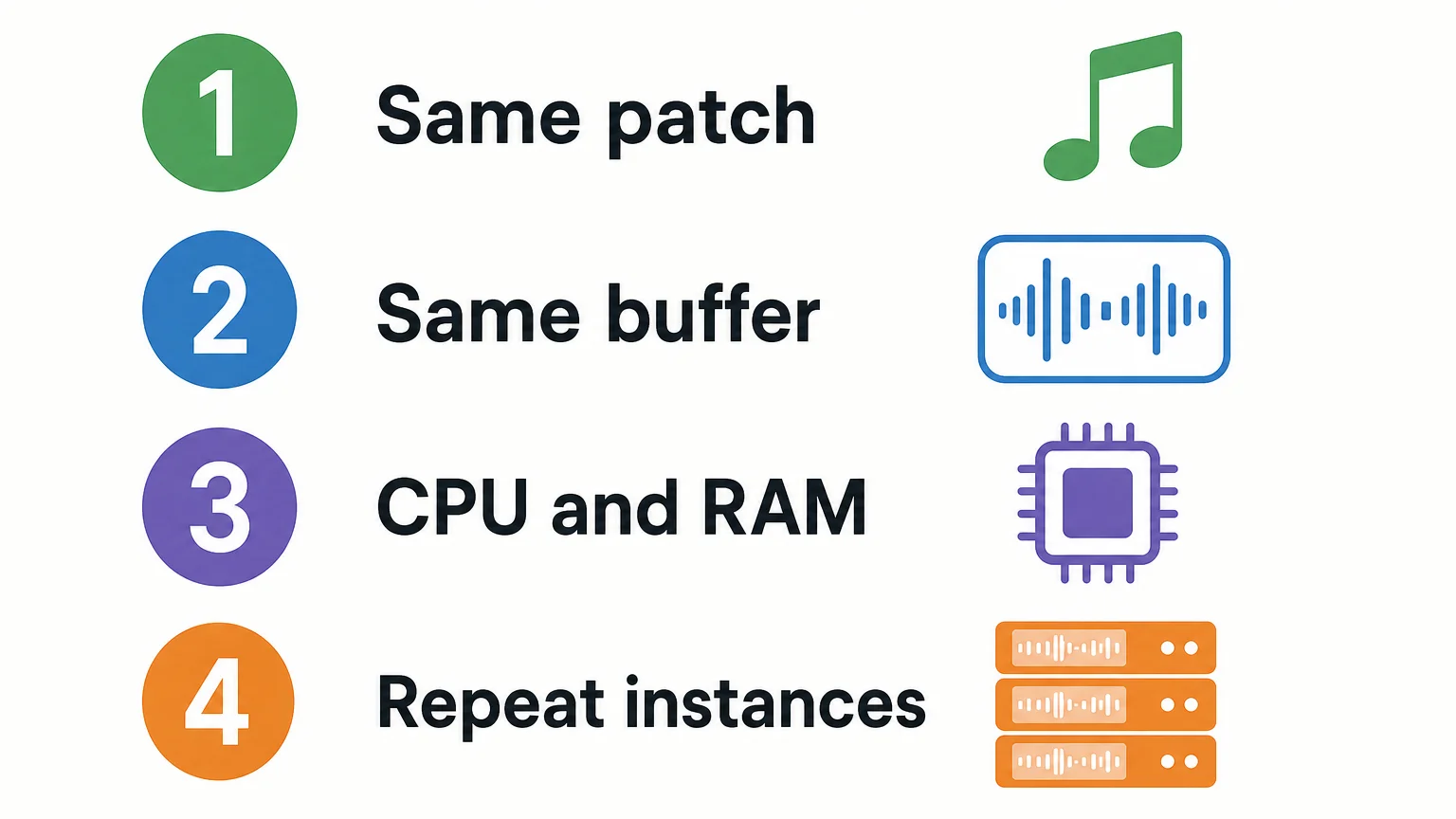
- Choose a representative patch and play the same MIDI phrase each time.
- Keep settings consistent, including sample rate, audio buffer, and DAW project.
- Check CPU and RAM while playing, then repeat with the effects or voice settings you expect to use.
- Add instances gradually to see how the load changes as your arrangement grows.
Test at your normal working buffer size. A setting that feels fine while arranging may behave differently when you lower the buffer for live MIDI performance. Use the DAW’s performance meter and listen for clicks, crackles, or interruptions; a low system-wide CPU reading by itself does not prove that a particular session is stable.
If you are comparing no-cost options, our free VST instruments page can help you find candidates to audition. Apply the same test to each one rather than assuming that “free,” “simple,” or “lightweight” guarantees low load in your DAW.
Why check RAM and loading separately from CPU?
A sampler or sound bank can make different demands from a synthesizer. Sample playback may involve RAM use, disk access, or loading time, while a synth patch may rely more on real-time processing. These are related but distinct parts of a project’s workload, so note them separately when testing.
Check the instrument’s library size, how quickly your presets load, and whether you can keep the sounds you need available without straining the computer’s memory. In Kontakt or another sampler, test the actual library and patch you plan to use; a small plugin download does not necessarily mean every included sound has a small memory footprint.
Once a sound is settled, printing or freezing its track can reduce the need to run the instrument live during later production. A June 2026 workflow overview also describes freeze and bounce as session-management options. These methods can help manage a project, but they do not replace checking whether an instrument meets your needs while you are auditioning and editing.
How does Pendora fit a low-resource beatmaking setup?
For trap, drill, melodic trap, R&B, pluggnb, dark trap, lo-fi, and phonk, Pendora is our genre-focused example to audition first. It is built around hand-crafted presets and production assets for these styles, and low CPU and RAM use is part of how we position the product. That is a product feature claim, not a universal performance benchmark.
The full edition includes 275+ studio-ready presets, alongside expansion packs, drumkits, MIDI, effects, and other production assets. If you need a broader overview of our VST instrument plugins, compare the sound and the included material with your project needs as well as checking resource use.
Compatibility matters too. Pendora supports VST3 on Windows and macOS, and AU on macOS. Its stated system support is macOS 11 Big Sur or later and Windows 10 or 11, 64-bit only; explicitly tested DAWs include FL Studio, Ableton Live, Logic Pro, Cubase, Pro Tools, and Reason. Confirm current requirements for your exact setup before installing. Any performance figures shown using an i5-8400 system are examples, not guarantees for every computer.
Choose for your real project, not a label
The most useful CPU-efficient VST instrument is one that sounds right and stays stable in your own DAW, with the buffer, effects, and number of instances you expect to use. Test comparable patches, watch CPU and RAM separately, confirm format and operating-system compatibility, and freeze or print tracks when a sound is finished. That gives you a practical basis for choosing instead of relying on a broad performance claim.
Choose a sound bank that fits your workflow
Projects with limited headroom need sounds that suit the music and remain workable as layers accumulate. We built Pendora for beatmakers working across trap, drill, melodic trap, R&B, pluggnb, dark trap, lo-fi, and phonk, with a focused sound bank and production assets for those workflows.

Pendora V3 includes 275+ studio-ready sounds, expansion packs, a Producer Kit, drumkits, FX, and MIDI content. It supports VST3 on Windows and macOS, and AU on macOS. The purchase is one-time, with royalty-free commercial use and free lifetime updates under the stated terms; account sharing and redistribution are excluded. Explore our VST instruments and plugins and check the current compatibility information for your setup.
Frequently Asked Questions
Can a low CPU VST instrument prevent every dropout?
No. Dropouts can depend on your computer, buffer setting, DAW session, and the instrument’s current patch and settings. Test the instrument in the project conditions you expect to use.
Does a higher audio buffer reduce an instrument’s CPU use?
A higher buffer can give the computer more time to process audio, which may help playback stability. It also increases monitoring latency, so test at the setting that suits your recording or beatmaking workflow.
Can an instrument use little CPU but still use a lot of RAM?
Yes. CPU processing, memory use, sample loading, and disk access are separate considerations. Check the library and patches you plan to use, especially with sample-based instruments.
Should I freeze a track after choosing a preset?
Freezing or printing a track can reduce the need to run its instrument live while you work on other parts of a project. Keep the editable instrument track available if you expect to change the sound later.
Is Pendora relevant for beatmaking on a CPU-limited system?
Pendora is designed for low CPU and RAM use and focuses on sounds for trap, drill, and related styles. Its performance on a particular computer depends on the session, so check compatibility and audition it in your DAW.