Summary: A synth pack for FL Studio may contain audio one shots and loops, MIDI, plugin presets, or a virtual instrument, and each type behaves differently in a project. Start with file format, sound character, host requirements, license terms, and access model. For trap, drill, phonk, pluggnb, or related beatmaking, prioritize a focused sound bank over a large folder of unrelated files.
A folder full of sounds can look useful until you discover that its presets require a plugin you do not own, or its loops do not fit your track. A synth pack for FL Studio can mean audio samples, MIDI, synth presets, or a playable instrument, so check what you are actually downloading. If you are exploring preset-based sounds, our free FL Studio preset packs are one place to start.
For beatmaking, the right choice depends on your workflow and sound: do you want to drag in a finished melody, shape a patch in a synth, or play an instrument from your MIDI keyboard? The more clearly a pack states its contents, supported software, and license, the easier it is to decide whether it belongs in your FL Studio library.
What does a synth pack actually contain?
Start by separating four common categories. Audio samples are already-rendered sounds, such as synth one shots, bass hits, and melody loops. MIDI files contain note and timing information, not the sound itself, so you need an instrument to play them. Synth presets are settings for a specific plugin, while a virtual instrument combines its own playable sounds with a plugin interface.
These formats serve different jobs. A WAV loop can give you an immediate phrase to chop, pitch, or arrange in the Playlist. A MIDI melody gives you more freedom to change the notes and choose the sound, but it requires a compatible instrument. A preset lets you play and shape a particular synth patch, but it usually depends on owning the correct plugin and having a compatible version.
Names such as Serum, Vital, Omnisphere, and Kontakt tell you something about the required instrument, not necessarily what audio files are included. A Serum or Vital preset needs its matching synth, for example, while a Kontakt library depends on Kontakt. Check the product description for the file list and software requirements before downloading, especially if you want sounds you can open without installing another plugin.
Choose sounds for the style of beat you make
For example, a producer building melodic trap may want playable bells, plucks, pads, or dark 808s, while a drill session may call for a different melodic palette and complementary drums. A synth-oriented pack can be useful for finding a starting point, but the labels alone do not tell you whether its sounds will fit your arrangement. Preview the audio where possible and check whether the pack provides single hits, loops, MIDI, or instrument patches.
A focused collection can also make sound selection more manageable when you have beatblock. Instead of cycling through sounds that do not fit your track, start with a few sounds selected for your genre, then shape them with pitch, envelope, filtering, and effects. If you need accompanying drums and production material, our sound kits for FL Studio cover a different need from a synth preset bank.
Our Pendora sound bank is designed around melodic trap, drill, dark trap, phonk, boom bap, and pluggnb. It is a virtual instrument and related production kits, not a standalone synth sample pack. That distinction matters: choose it when you want playable presets and connected production assets, rather than a folder consisting only of audio loops or one shots.
Check how the pack works in FL Studio
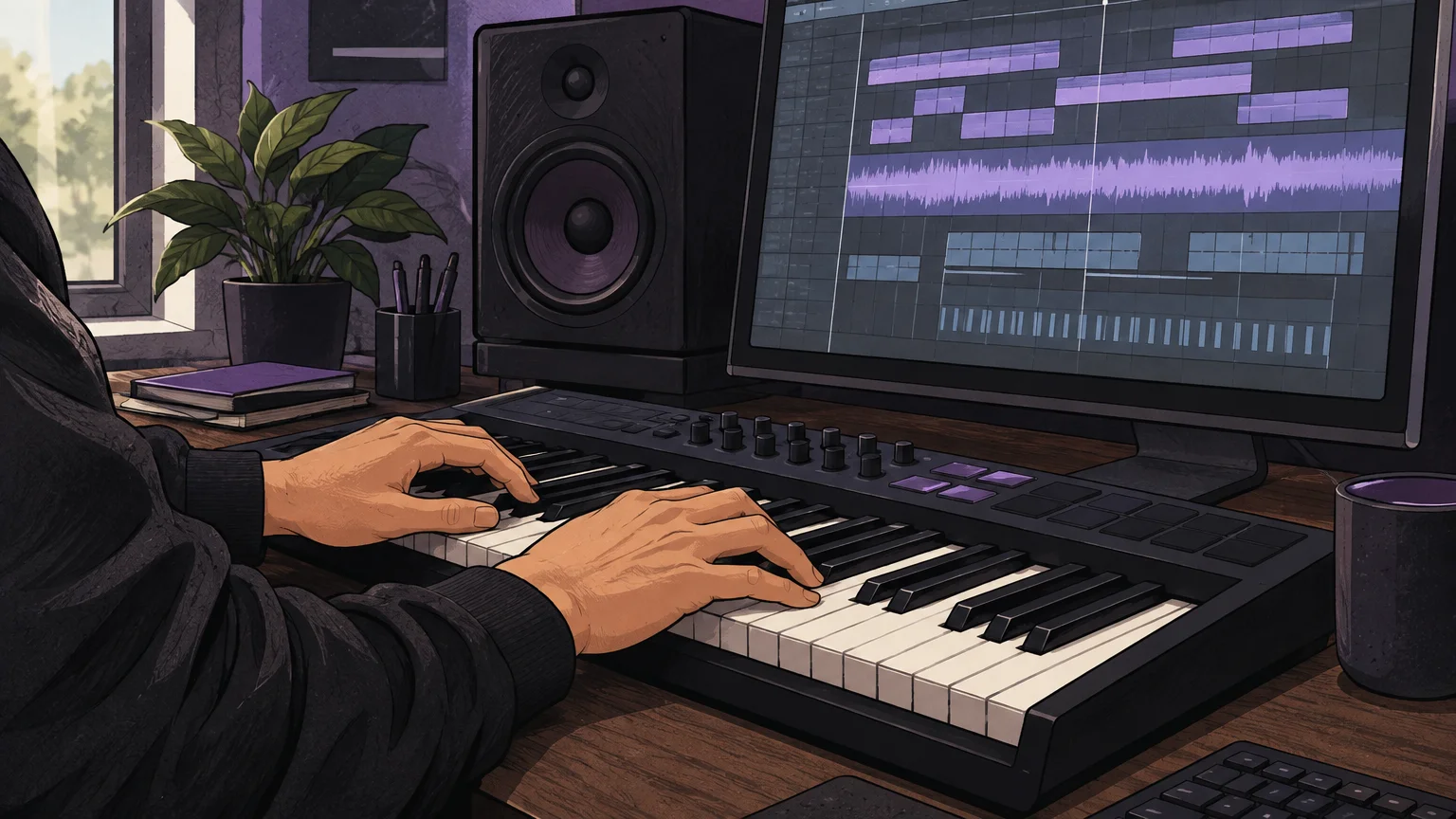
Will the files load in the way you expect? A pack of WAV one shots or loops is different from a plugin that you open as an instrument. Look for the file formats, the plugin format if applicable, and any stated DAW or operating system requirements. If you work across DAWs, do not assume that a preset for one instrument will open in another; audio files and MIDI have different roles from plugin-specific patches.
Image-Line describes FL Cloud as a way to search, audition, and drag sounds into a project from within FL Studio. Its 2026 FL Studio page also distinguishes the DAW from this optional sound and plugin service. That makes the key choice practical: do you want an integrated library, downloadable audio files you organize yourself, or a virtual instrument with its own presets?
When you use more than one DAW, confirm file support in each host rather than assuming it is identical. For example, the Ableton Live manual lists supported audio formats such as WAV, AIFF, FLAC, and OGG Vorbis, with additional import formats noted. That is a useful reminder to check the documentation for your own setup; it does not establish that every format or plugin preset behaves the same way in FL Studio.
Compare free downloads, subscriptions, and one-time purchases
A free download can be a sensible way to test a sound or add a few sounds to a starter library. Check whether signup is required, what files are included, and whether the license covers your intended releases. For a larger sound library, compare the access model as well as the contents: a subscription may bundle ongoing access to a catalog, while a one-time purchase gives you a defined product rather than a recurring plan.
Our Pendora line is sold as a one-time purchase, with a smaller evaluation-oriented edition and a fuller sound-bank option. This can suit a producer who wants a dedicated instrument rather than a subscription-based catalog, but the right choice depends on whether you will use its genre-focused sounds and production assets. Review the exact edition contents and compatibility requirements before choosing.
Read the license before using samples in a release
A producer preparing to sell, place, or distribute a beat should read the sound pack’s license before building a track around it. “Royalty-free” does not mean that every use is unrestricted, and it does not grant permission to redistribute the original files as a sample library. Check the terms for commercial releases, credit requirements, and restrictions on reselling or sharing sounds.
For U.S. releases, the U.S. Copyright Office sampling guide explains that musical works and sound recordings are distinct works, and that using preexisting material can raise separate rights questions. This is general U.S. guidance, not a substitute for the license attached to a particular pack or the laws in other countries. Keep the license details with your project files so you can check them if you later release or license the beat.
Our products are described as royalty-free for commercial beat use under their stated licensing terms. Those terms also exclude account sharing and redistribution, so check the applicable product license rather than assuming that “royalty-free” permits every kind of sharing or resale.
Use a short checklist before you download
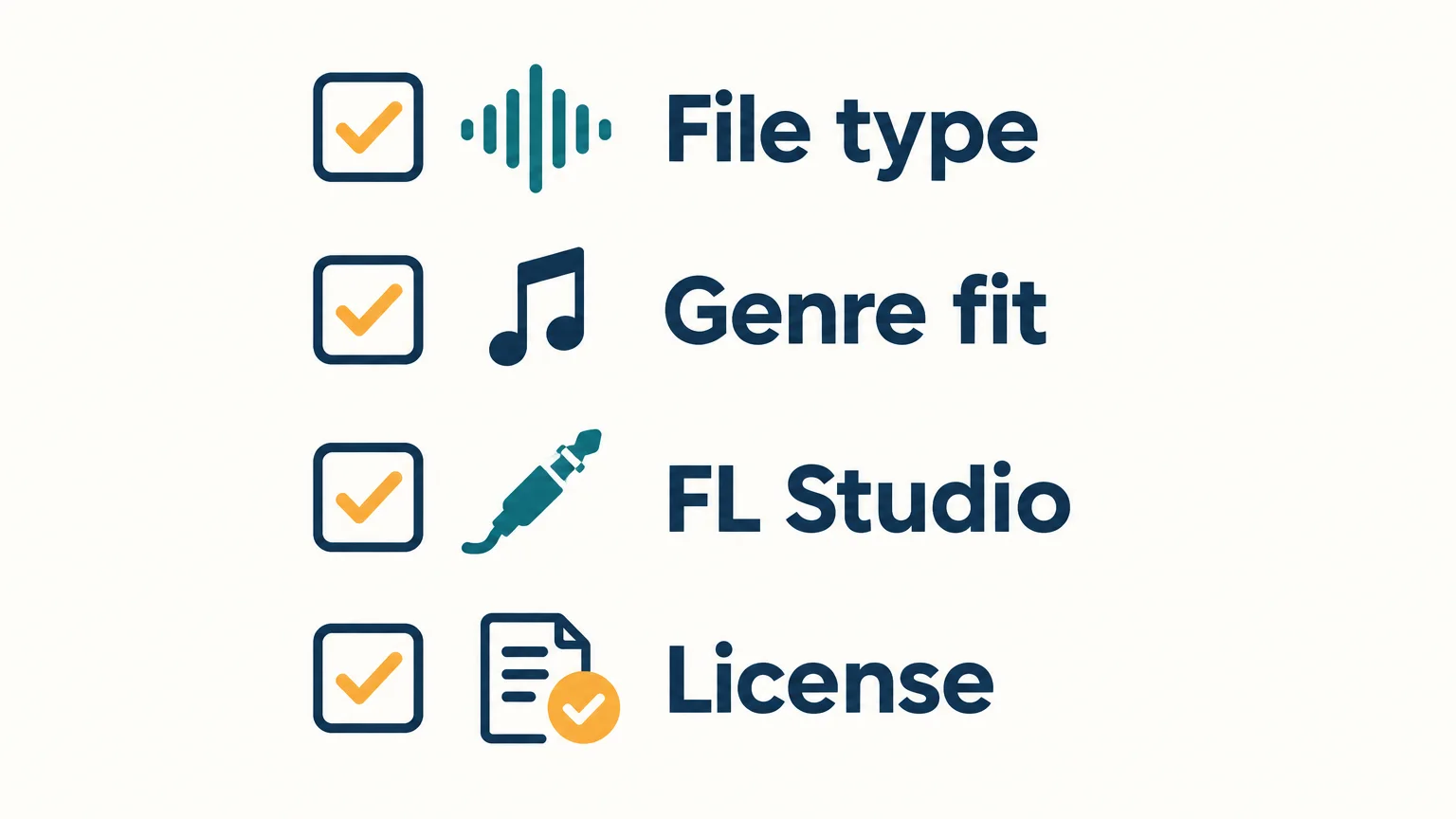
Before adding a new pack to your library, make sure it fits both the project and your setup. If you are comparing several options, check the same details for each one: the contents, genre fit, FL Studio workflow, and license. A short check now can save time later when you are trying to open a preset or confirm usage rights.
- File type: Confirm whether the pack contains audio, MIDI, plugin presets, a virtual instrument, or a mix of these.
- Genre fit: Preview the sounds and decide whether their character suits the beat you are making.
- Workflow: Check required plugins, file formats, and any stated DAW or operating system requirements.
- Access and license: Understand whether access is free, subscription-based, or a one-time purchase, and read the commercial-use terms.
Choose a pack that fits your workflow
A useful synth pack is not simply the one with the most files. Choose the format you can use, sounds that suit your production style, requirements that match your setup, and a license that supports your plans for the beat. When those details are clear, it is easier to add new sounds without slowing down your FL Studio workflow.
Explore a sound bank built for FL Studio beatmaking
If you want playable presets and coordinated production assets rather than only rendered synth samples, a genre-focused sound bank may fit your session better. Our Pendora instrument is explicitly tested in FL Studio and covers styles including melodic trap, drill, dark trap, phonk, boom bap, and pluggnb.
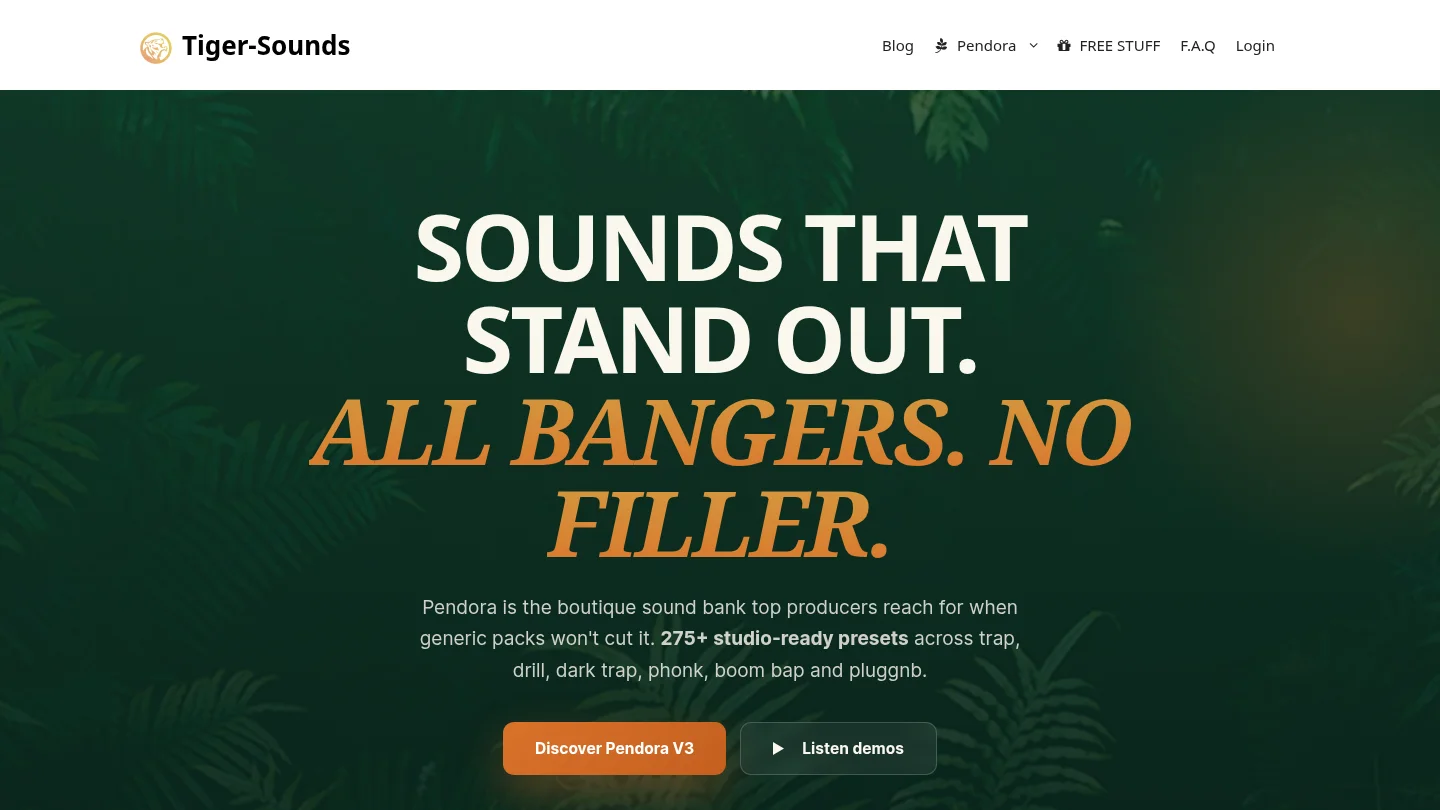
Pendora is a virtual instrument with hand-crafted presets, alongside related kits and production assets. It is a different option from a folder of WAV loops or a preset collection for Serum, Vital, or another third-party synth. Review the Pendora sound-bank instrument for FL Studio if you are looking for a one-time-purchase sound bank for your beatmaking setup.
Frequently Asked Questions
Can I use WAV synth samples in FL Studio?
Audio samples and loops can be used as audio in a project, while plugin presets and MIDI have different requirements. Check the pack’s file list and your FL Studio setup before downloading.
What is the difference between a synth sample pack and a preset pack?
A sample pack contains rendered audio, such as one shots or loops. A preset pack contains settings for a particular synth, so you need that instrument to use the presets.
Do I need Serum or Vital to use a synth pack?
Only if the pack’s presets are made for that synth. Read the product description, since audio samples, MIDI, and presets for other instruments do not automatically require Serum or Vital.
Are free synth packs cleared for commercial use?
Not automatically. Read the specific license to see whether commercial releases are allowed and whether attribution or other restrictions apply.
Is Pendora a synth sample pack for FL Studio?
Pendora is our sound-bank virtual instrument and related production kits, not a standalone folder of synth samples. It is tested in FL Studio and focuses on melodic trap, drill, dark trap, phonk, boom bap, and pluggnb.