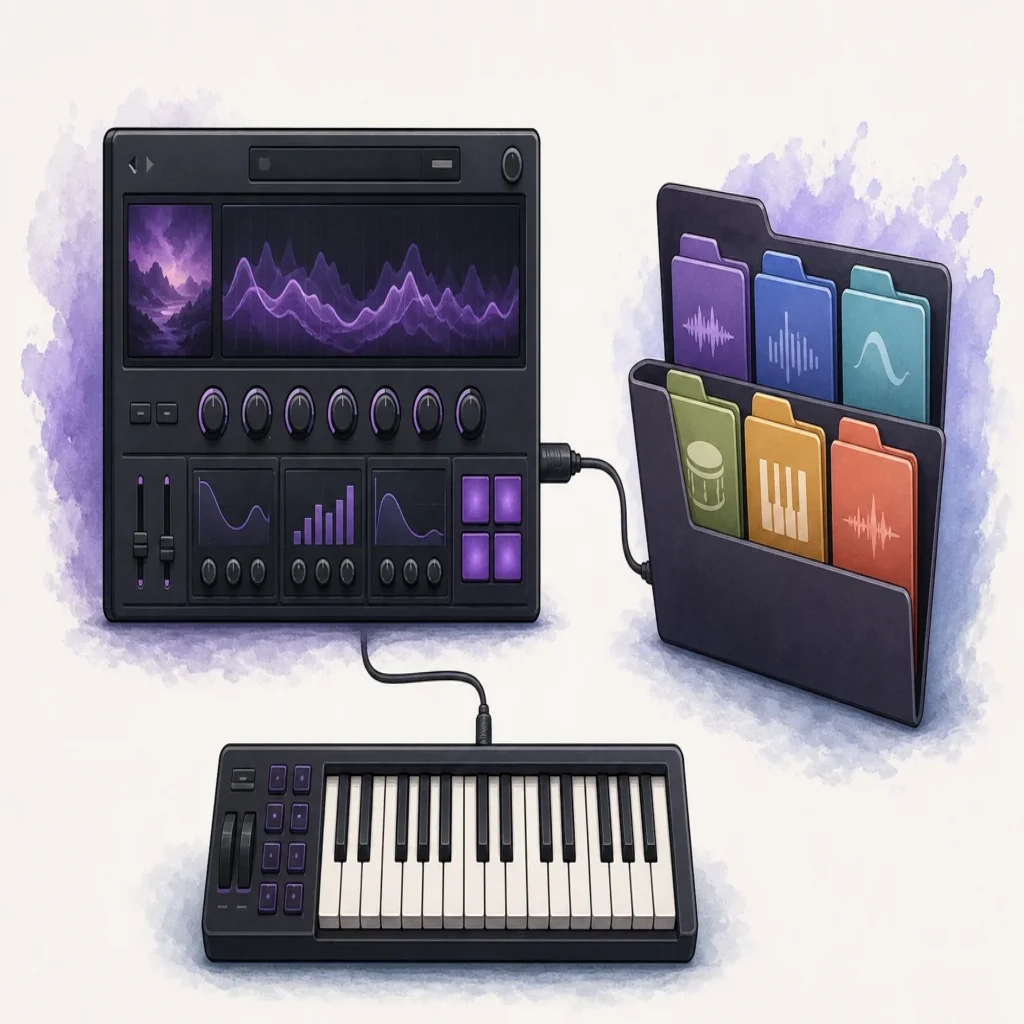
Summary: To install a VST instrument and its sound bank, check that your DAW supports the plugin format and your operating system. Run the developer’s installer, place the library where the instrument expects it, then enable the plugin format in your DAW, rescan, and load the instrument on a MIDI track. A plugin and its sound bank are related, but they are not necessarily the same file.
A plugin can install successfully and still be missing from your DAW if the format, folder, or scan settings do not match. Before downloading, check the instrument’s requirements and whether it provides a separate library installer. If you are working with Pendora presets, follow our guide to how to install Pendora preset packs, since preset packs may use a different process from installing the instrument itself.
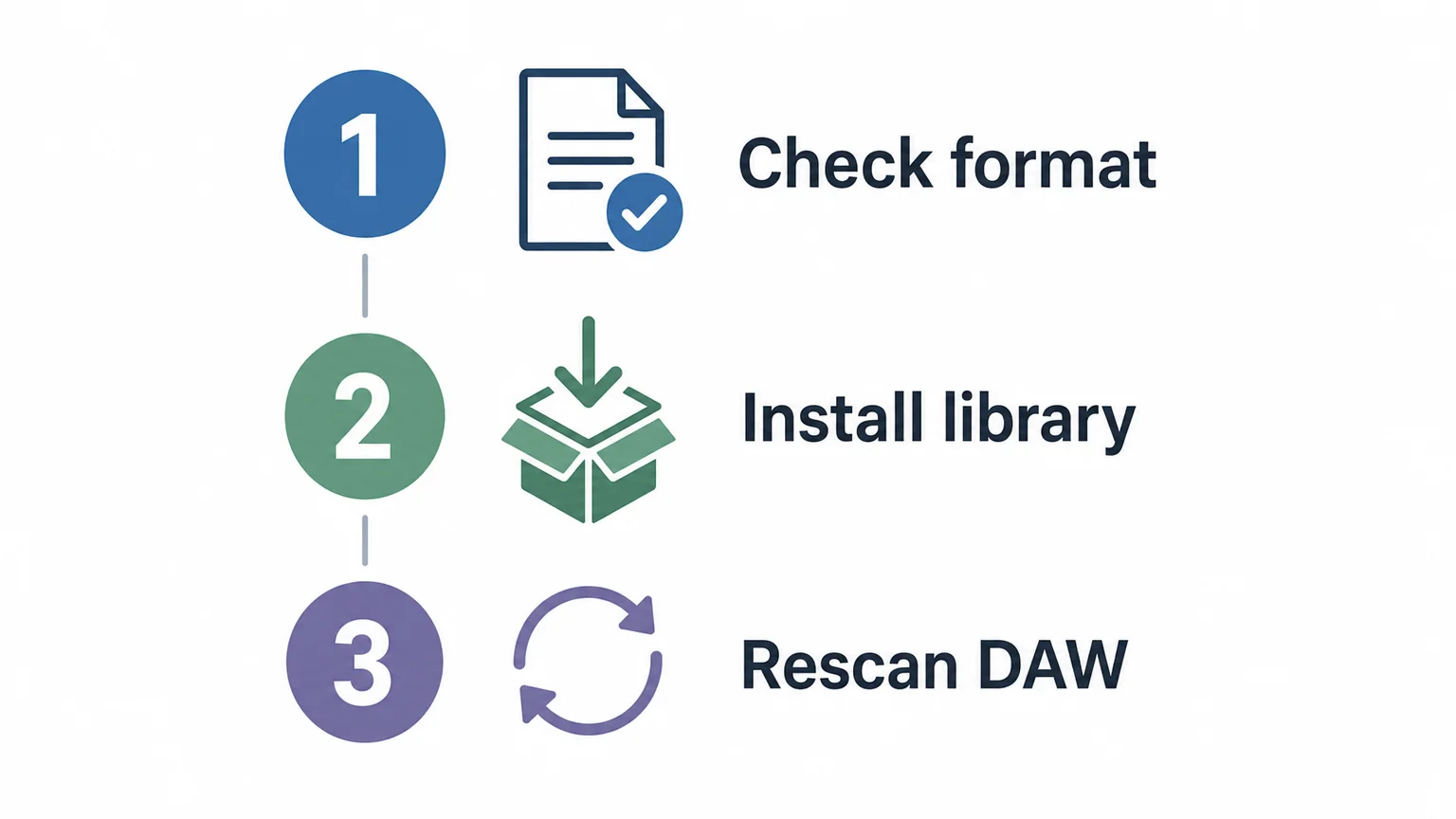
The basic process is to confirm compatibility, install the plugin and any separate sound library, then scan for the plugin in your DAW. These steps apply whether you are adding a new synth for beatmaking or installing a sampler library. The details vary between Windows and macOS, and between VST3, VST2, and Audio Units, so use the developer’s instructions when they specify a particular format or location.
Check what the VST and sound bank include
Before you install anything, find out whether your download contains the instrument, a sound bank, or both. A VST instrument is the plugin your DAW loads. Its sound bank may contain presets, samples, or other content that the plugin needs to produce sound. Some products include everything in one installer, while others provide a separate library download or preset pack.
Check the product’s format, operating-system, and processor requirements against your computer and DAW. On macOS, a plugin may be offered as VST3, Audio Units (AU), or both. Windows plugins commonly use VST3 or VST2. A DAW must support the format you install, and a 64-bit host generally requires a compatible 64-bit plugin. Also check whether the plugin supports Apple Silicon natively or requires a different startup mode.
Plan where a separate sample library will live before installing it, especially if you intend to use an external drive. Keep the plugin in the location recommended by its installer, and use the plugin’s own settings to locate its library when necessary. For producers comparing options, our VST sound bank page describes the sound-bank destination; check its product details for supported formats and systems before installing.
Install the plugin and its sound library
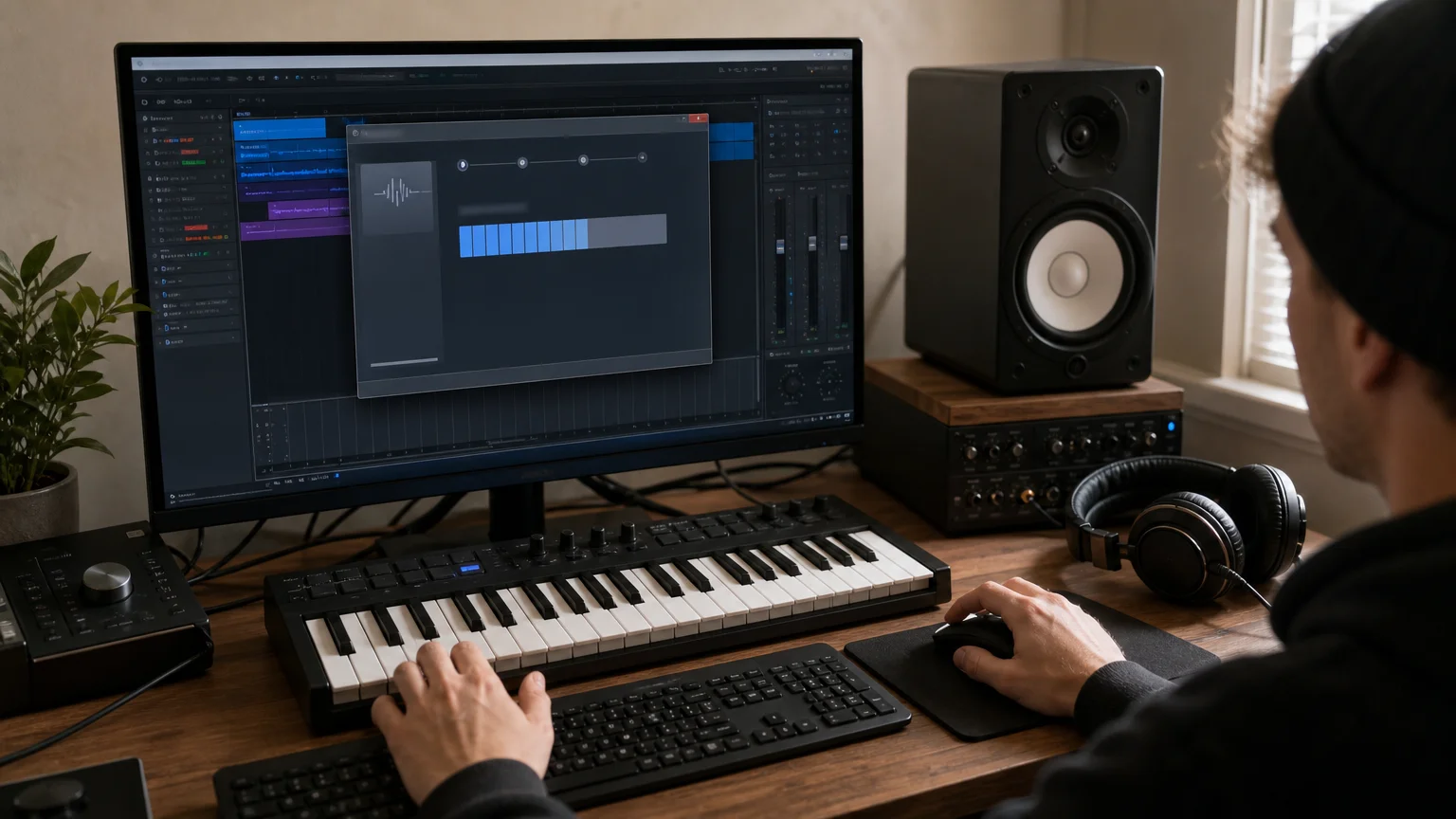
Download the installer from the instrument developer and close your DAW before running it. On Windows, open the supplied installer and follow its prompts. On macOS, open the provided installer package and follow the on-screen steps. Unless the developer gives a specific reason to choose another location, use the default plugin folder so compatible DAWs can find the plugin more easily.
If the installer offers multiple formats, select one that your DAW supports. Avoid placing a VST3 file in an unrelated custom folder if the developer’s instructions specify a system location. For a VST2 plugin that lets you choose its destination, use a consistent folder and make sure your DAW scans that same folder.
Install a separate sound bank or sample library using its own installer, if supplied. If you choose an external drive, connect it before installation and keep the library in a stable folder. After installation, use the plugin’s library or content settings to locate the files if they are not detected automatically. Do not move the library later without updating that location in the plugin.
With Pendora, we provide a download link and license key by email after purchase. Run the installer on your Mac or PC, and the plugin auto-detects the DAW. Pendora supports VST3 on Windows and macOS, and AU on macOS; the supported systems are macOS 11 Big Sur or later and 64-bit Windows 10 or 11.
Scan for the plugin and load it in your DAW
Once installation is complete, open your DAW and enable the plugin format or folder it should scan. In FL Studio, open Options, then File settings, then Manage plugins. Choose the scan options and search paths that match your installation. The FL Studio manual recommends the plugin installer’s default location for most installations and explains how to scan plugins with the Plugin Manager.
After the scan, find the instrument in the plugin browser and load it on an instrument or MIDI track. Play a few notes from a MIDI keyboard or the DAW’s piano roll, then check that the plugin produces audio. If the instrument opens but presets or samples are missing, the plugin may be installed correctly while its separate library still needs to be located.
In Ableton Live, open the Plug-Ins settings and turn on the relevant VST or AU sources, then rescan. Ableton’s Live 12 manual explains how plug-in sources work and notes that AU is available on macOS. For a DAW-specific starting point, our FL Studio VST sound bank and Ableton VST sound bank pages are relevant to producers working in those hosts.
Troubleshoot plugins or presets that do not appear
If the plugin is missing from the browser, first confirm that you installed the correct format and processor version. Then check that your DAW scans the folder used by the installer. If you recently installed or updated the plugin while the DAW was open, restart it or run another scan.
If the plugin opens but cannot find its sounds, open its library or content settings and confirm the folder path. Check that the library download finished and that you installed the correct version for the instrument. For a preset pack, check whether the developer expects you to import, copy, or drag the presets into the plugin rather than install them as a separate instrument.
When a rescan still does not solve the issue, check the DAW and plugin versions, the operating system, and whether the plugin is running in the compatible processor mode. If you are installing Pendora and cannot resolve an installation issue, contact us at contact@tiger-sounds.com. We usually reply to installation and product questions within 24 hours.
Conclusion
Successful installation depends on matching the plugin format to your DAW, keeping any separate sound library in a location the instrument can find, and rescanning after installation. Check compatibility first, follow the developer’s installer directions, and load the plugin on the right track type. With installing a VST instrument and its sound bank, treating the plugin and its library as separate parts makes it easier to identify where a problem occurs.
Choose sounds that fit your workflow
Once the plugin is installed, the sounds you reach for can shape how quickly you move from an idea to a beat. Our Pendora instrument and production assets are made for melodic trap, drill, R&B, pluggnb, dark trap, lo-fi, and phonk workflows.

Pendora’s full edition includes 275+ presets, expansion packs, drumkits, MIDI content, effects, and risers. It is available as a VST3 plugin for Windows and macOS, and as AU for macOS, with support for macOS 11 Big Sur or later and 64-bit Windows 10 or 11. Explore the Pendora VST sound bank to review its contents and compatibility before choosing an edition.
Frequently Asked Questions
Is a VST plugin the same thing as a sound bank?
No. The plugin is the instrument or effect that loads inside your DAW, while a sound bank usually contains presets, samples, or related content. Some products install them together, while others require separate installation or setup.
Where should I install a VST plugin?
Use the default location recommended by the developer unless its instructions say otherwise. If you choose a custom folder, make sure your DAW scans that location and follow the developer’s format-specific guidance.
Why does my plugin not appear in the DAW?
Common causes include installing an unsupported format, choosing the wrong plugin version, or failing to scan the folder where the plugin was installed. Confirm compatibility, enable the correct plugin source, and run a fresh scan.
Can I keep a sound bank on an external drive?
Often, if the instrument lets you choose or relocate its library. Install or move the files to a stable folder, then point the plugin to that location and keep the drive connected when using the instrument.
How do I install Pendora for FL Studio or Ableton Live?
After purchase, run the installer on your Mac or PC, then open your DAW and scan or enable the supported plugin format if needed. Pendora supports VST3 on Windows and macOS, and AU on macOS; check the operating-system requirements before installing.